On this page ▾
This page is dedicated to improve your working experience with the DWithEase extension and give you a better understanding of how to start using it.
Download
You can download the extension for Chrome, Safari, Firefox, and Edge Chromium.
 |  |  |  |
|---|---|---|---|
| Latest ✔ | Latest ✔ | Latest ✔ | Latest ✔ |
Benefits from using the extension
The extension is created to ease SFCC developers with their daily tasks by giving them quick access to pages in Business Manager, automatic log-in, tools for enhancing their working experience, and a lot more.
Main views
The extension has two primary ways for user interaction - the popup and options.
The popup view
Click on the DWithEase icon in your browser’s extension bar will make the popup view appear.
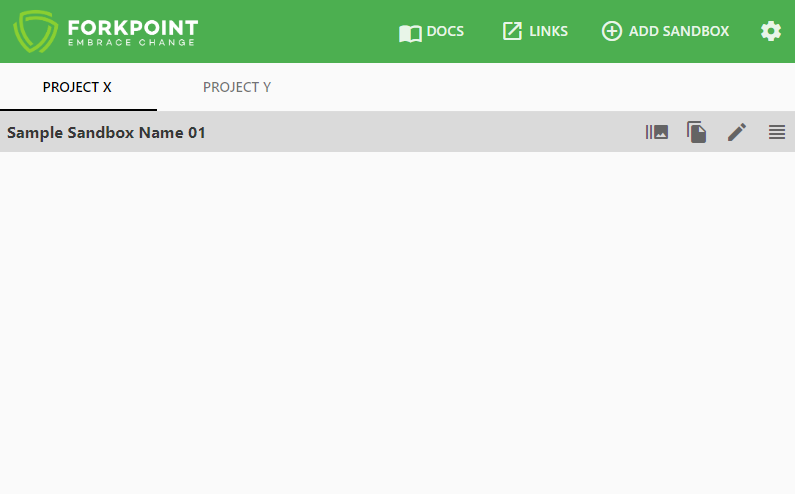
Highlighted features
- Open sandboxes quickly
- Add a new sandbox configuration
- SFCC Documentation search directly from the popup view
- Links to most popular SF/SFCC pages
To see all of the popup features in details, you can visit the popup view section.
Options page
This is the main configuration page. It brings a lot of extension customizations and features settings. You can quick access the options page by right-clicking the extension’s icon from the browser toolbar.
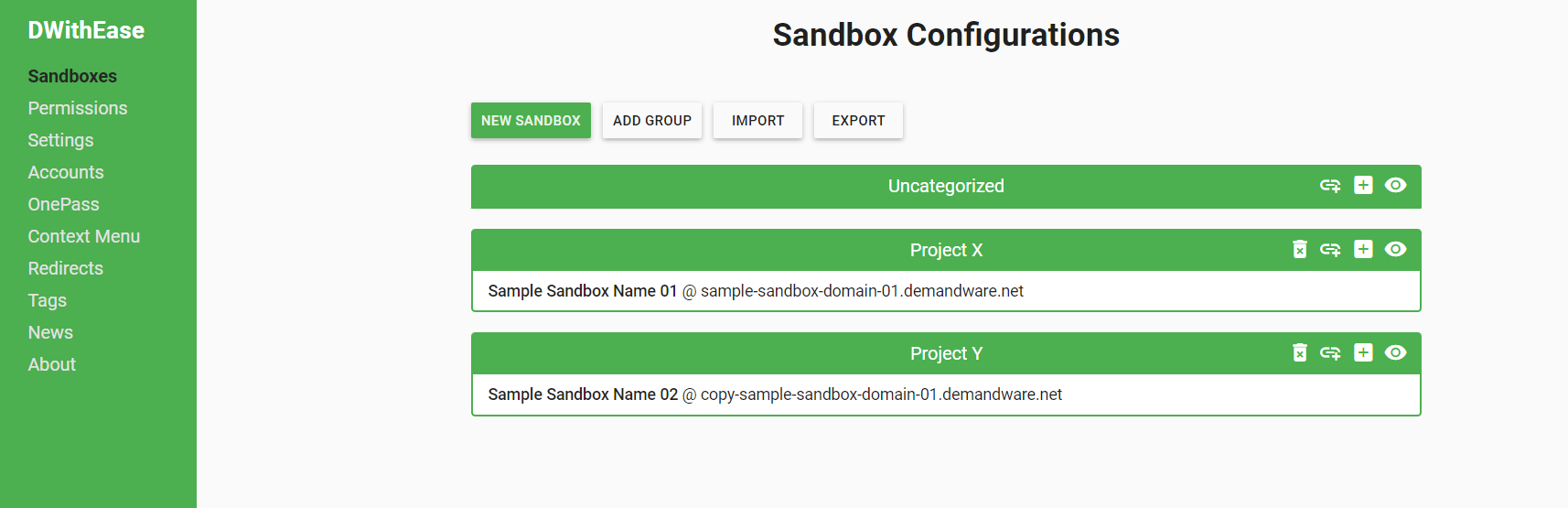
Tabs
- Sandboxes - Manage sandbox configurations, environment tier badges, and groups with drag-and-drop
- Permissions - Whitelist of URLs that the extension uses
- Settings - Custom settings including production controls injection
- Accounts - Store multiple Account Manager accounts and use them to log in quickly in a sandbox with Unified Authentication enabled
- OnePass - Master password protection with AES-256 encryption and configurable vault lifespan
- Context Menu - Customize the items in the context menu
- Redirects - Enable/Disable automatic redirects for a specific Business Manager URL/Action
- Tags - Filter WebDAV files quickly in a directory; add, remove and customize tags
- Plugins - Custom JavaScript and CSS scripts for Business Manager with a built-in code editor
- Discover - Helpful tools and superpowers from ForkPoint with calm cards and frequency controls
- About - Information about the extension and its developers
You can find more detailed information about each tab in the options page of the documentation.
Highlighted features
Here are few of the main features that will speed up your development and platform usage:
Sandboxes & OnePass
- Automatic login in Business Manager and non-production storefronts
- Visual environment badges (DEV, STG, PRD, ODS) on every sandbox row
- OnePass master password vault with AES-256 encryption and customizable lifespan (session, 8 hours, 24 hours, persistent)
- Create sandbox groups for easier control and visibility over your environments
Business Manager Tools & Custom Plugins
- Custom Plugins: Write JavaScript and CSS plugins with a built-in syntax-highlighted editor to customize Business Manager
- Production Controls Injection: Safely inject missing New/Delete controls in production for Catalogs, Custom Object Attribute Definitions, Attribute Groups, and Site Import/Export
- BM Toolbar: Instant cache invalidation, code version switching/rollback, cartridge path manager, and Smart Search with Alt + S
Code Beautifier & Enhancer
- JSON/HTML Formatter / Prettify in all applicable Business Manager fields
- Support JSON validation with success/error message
Browser notifications
- Automatically detects when you log in to a new (unsaved) sandbox and suggests you to save it as sandbox configuration
- Automatically detects if you changed your password, and suggests you to update your extension account configuration
WebDav Directories & Logs
- Showing Tags at the end of the log
- Log list sorted and colored by last modified date
- Modernized log viewer with responsive streaming and ODS (On-Demand Sandbox) Empty/Delete support
- Two switchable views of the WebDav Directories (Standard and Tree View)
Context Menu
- The context menu offers quick and simple access to the most commonly used pages
- You can access the context menu by right-clicking on the Business Manager page or the Storefront page
If you are interested in learning more about the Context Menu you can check the Context Menu page.
Frequently Asked Questions (FAQ)
How to configure a new Sandbox instance?
Configuring a sandbox can be done be either the popup or options view. See Adding a new sandbox.
Are my passwords secure?
Yes. Your passwords are stored securely using AES encryption and are also hidden in plain text once input. Doing export on your sandboxes also clears your password for security reasons.
Do I have to set a password?
No. However, If you don’t present a username and password, you will not be able to use one of the core functionalities - Automatic Business Manager Login.
Can I use the extension in staging and production?
A: Yes. However, we recommend using the extension only for the Developers and Development sandboxes.
Was this page helpful?
Help us improve the DWithEase documentation.