On this page ▾
Overview
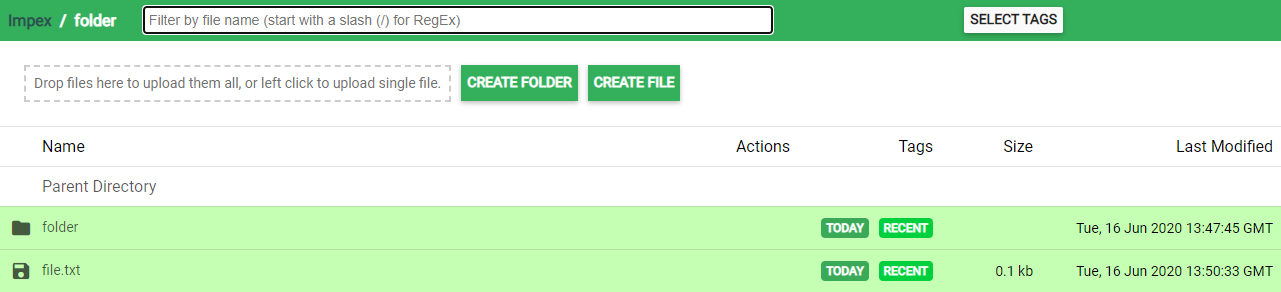
File Filter

This field allows you to search for files by their names. In case you need a more advanced search, Regex expressions are also supported. You can find more information about the Search bar in Logs searching.
Tags
Logs are also related to the Tags section. Their functionality is similar to Logs tags.
WebDAV file and folder creation
WebDAV provides control over the files and their existence. You can add, remove, and edit files and folders.
DWithEase supports two ways for creating a new file: you can either drag and drop it or create it manually with “Create Folder” and “Create File” buttons.
In the drag-and-drop section you can simply drag and drop a file(s) or folder(s) and they will be uploaded to the current location.

You can check this video for more details:
WebDAV file and folder actions
A file or folder on hover will show three extra actions :
delete will delete the file or folder.
format_textdirection_r_to_l will open a dialog to rename your file or folder.
archive will make an archive of the selected folder or file in the current location. By clicking on it, a dialog will appear asking for an archive name.
This video will demonstrate how to use the three actions:
Hovering over a file will display one extra action edit. Upon clicking it will open the WebDAV File editor.
WebDAV file editor
WebDAV editor actions:

Clicking on the file name will open the file in a new tab in a view mode. In this mode, you can only inspect the file content but you can not edit it.
save - “Save file” will save the file.
 - “Open file location” will open file location in a new tab.
 - “Open history folder” will open the history folder, showing every version of the file. Particularly useful if you want to revert the file to a previous version.
 - “Undo” will revert your latest change.
 - “Redo” will revert your latest “Undo” change.
 - “Copy to clipboard” will copy the content of the file to your clipboard.
Shortcuts - Clicking this button will open a list of shortcuts on the right of your screen.
History - Will expand a list of all versions of the file:
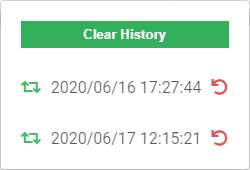
Clear History - Deletes all previously saved versions of the file.
 - “Check diff” will open a diff editor, comparing the current version of the file with the clicked one.
 - “Revert” will replace the current content of your file with the one from the clicked file version.
This video will summarize it for you:
Tree view
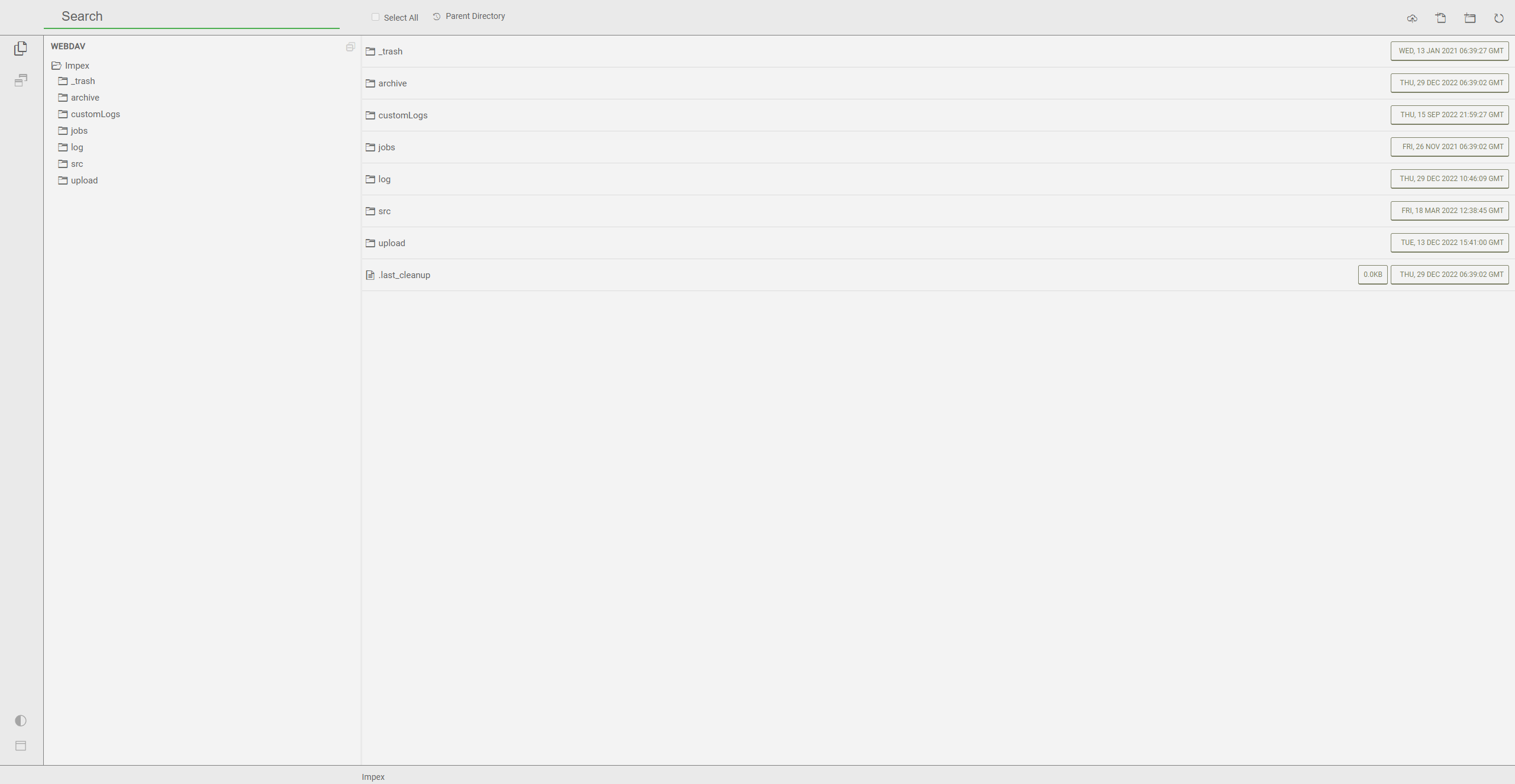
In addition to the beautified WebDav view for WebDav Folders, there is another switchable UI. See Enable Tree view setting.
The Impex folder opened with the Tree view looks as follow:
Dark mode support:
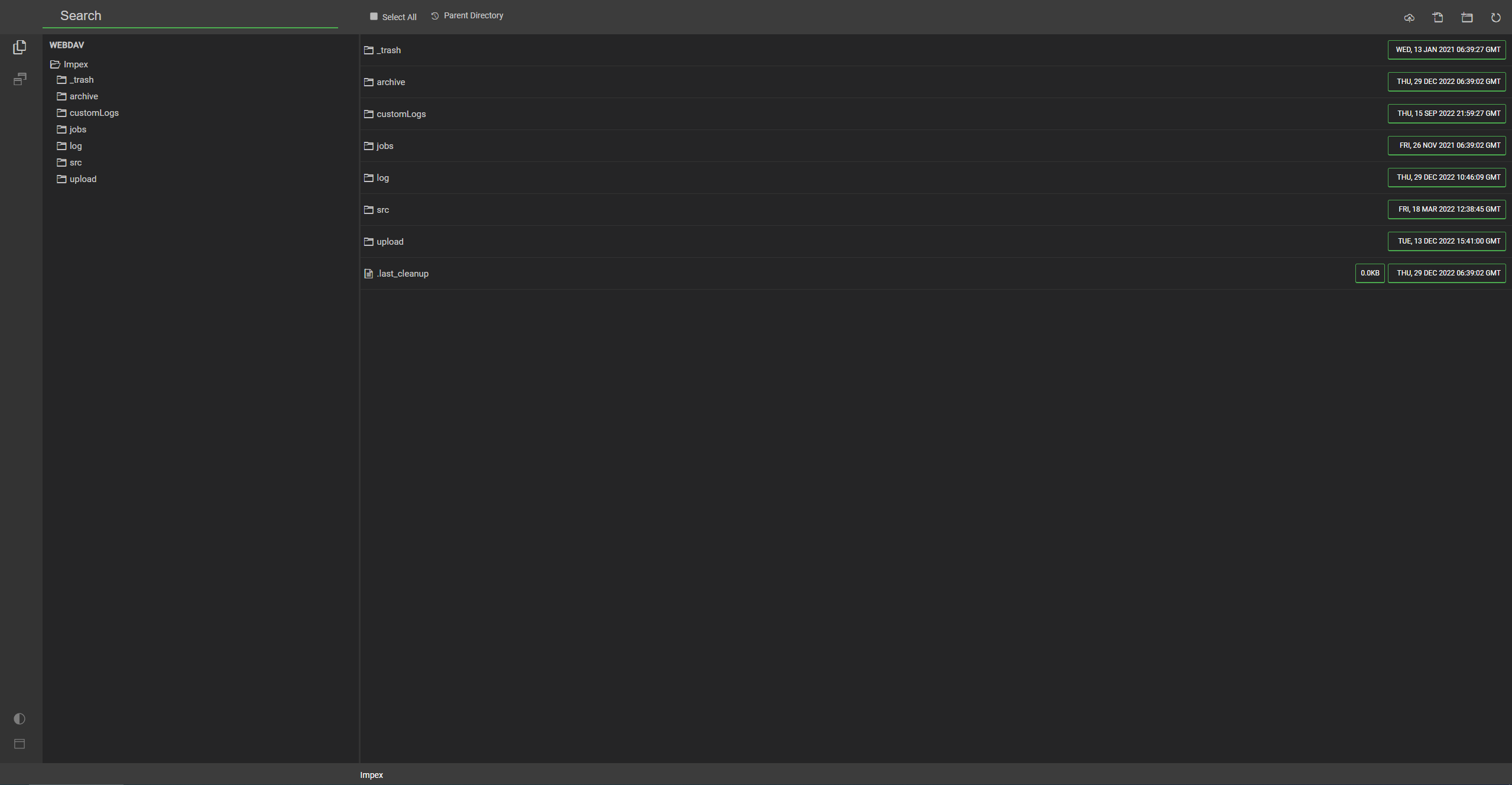
Not all WebDav directories support the Tree view, in case its not supported, a fallback to the original WebDav beautified view will be loaded.
Logs
How to use tags
Tags are shown at the end of a log file. Log files can have one or multiple tags:

DWithEase offers many diverse tags and an option for creating custom tags. The idea behind tags is to help the user get a better understanding of what the log file contains.
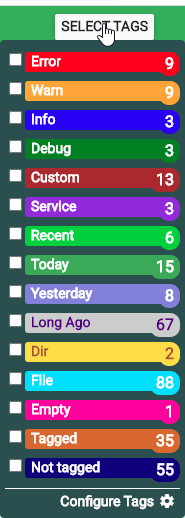
This video shows how to use tags and helps to understand them easily.
How to use actions
Opening the Log section you can see 3 tags under the Actions tab.
autorenew Opens a file in a new tab with the modernized log viewer. The opened file will be trimmed to show only the last part of the log with real-time change detection. If you keep that page opened, file watching automatically fetches and appends new log lines smoothly without crashing or leaking memory on large files.
delete_outline Clears the content of the log file (Empty). Works across all sandbox types, including On-Demand Sandboxes (ODS).
delete Deletes the selected log file. Full support on standard and On-Demand Sandboxes (ODS).
open_in_new Opens the original version of the file without the extension interfering in any way.
This video shows all of the mentioned functionalities summarized.
Logs colorizing
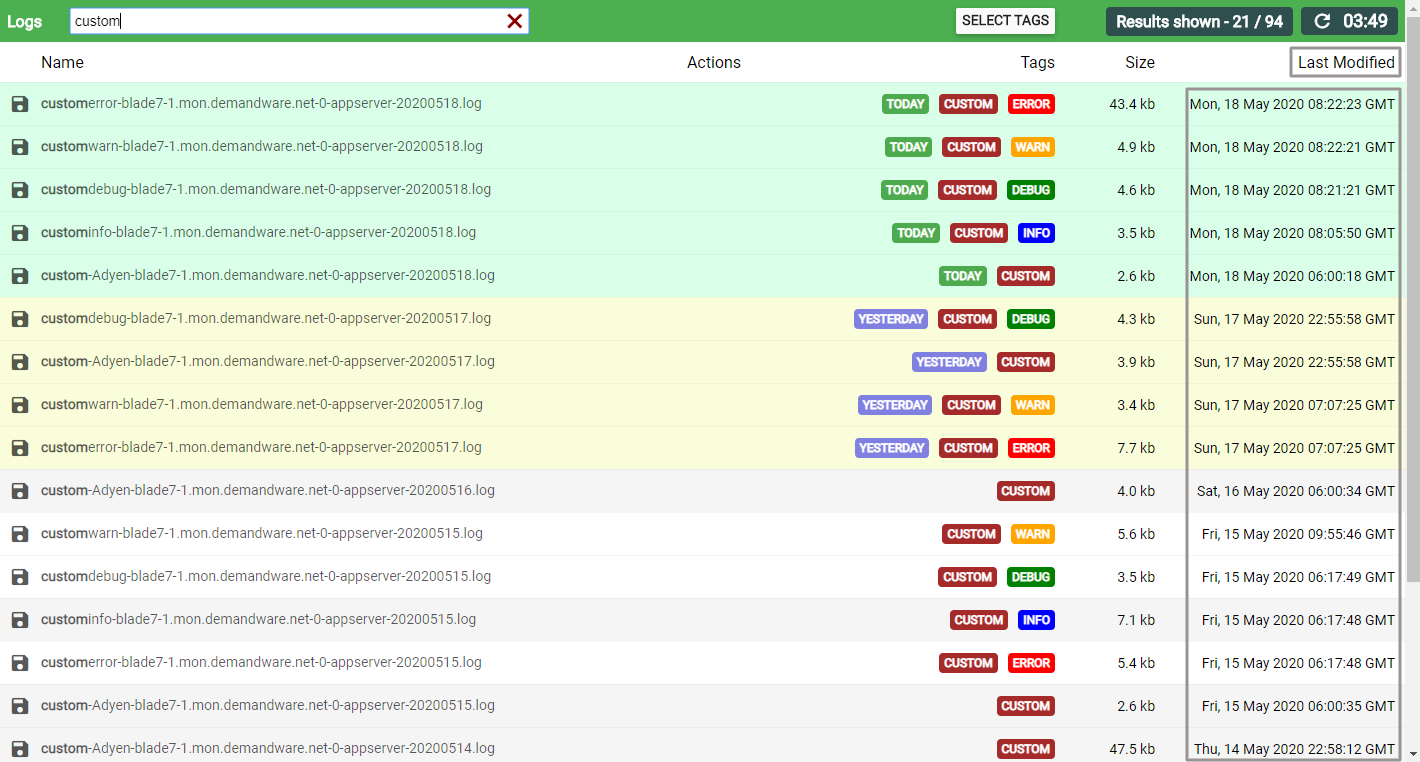
DWithEase supports colorized Logs. Logs will be colored with unique colors depending on the date the log was created and/or updated. In the example below, the logs that were updated today are colored in green, the logs from yesterday are colored in orange and the rest of them are in gray color.
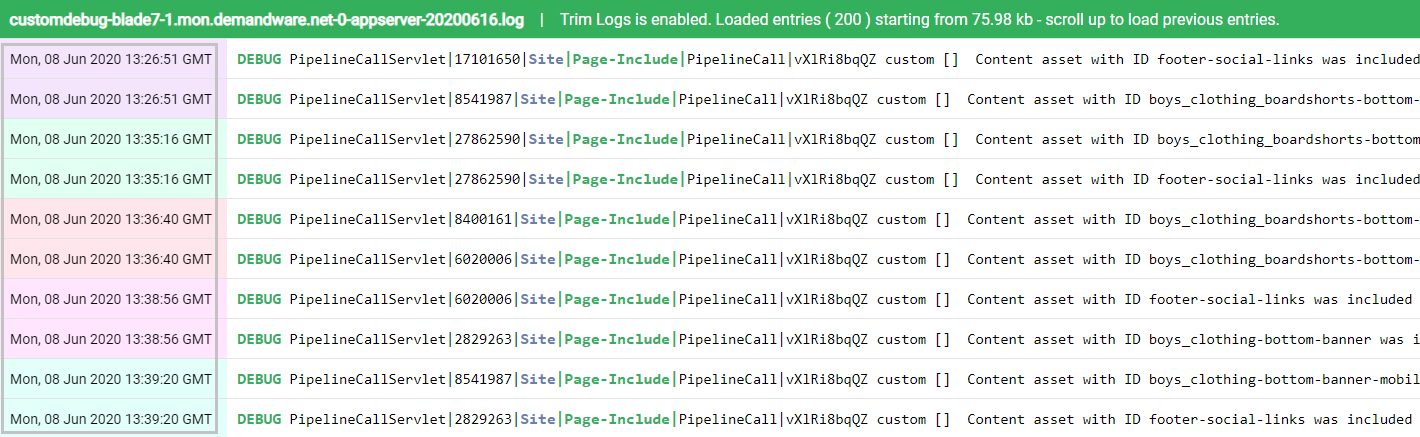
The coloring inside an opened log file is an indicator that applies the same color to the entries that happened at the same time.
Logs searching
At the top-left of the Log’s page you can find a search field:
This field helps you find the log you need faster and easier. Also, it does support RegEx expressions. To learn more, take a look at the video below.
Logs timer
At the top-right of the Logs page, you have a timer counting down:

Logs download and folders
At the very left side of every file the following icons can be found:
folder Opens the folder, revealing its content.
save Downloads the Log file locally.
In this video both of the actions are demonstrated:
Was this page helpful?
Help us improve the DWithEase documentation.