Salesforce Commerce Cloud (SFCC) Business Manager is a comprehensive platform, but its hierarchical navigation model demands a high click tax. Routine tasks—such as clearing the page cache, checking an active code version, or inspecting custom site preferences—typically require four or five nested menu navigations from the home screen.
None of these clicks seem expensive in isolation. However, across twenty code iterations, content revisions, or promotion sanity checks a day, this friction repeatedly shatters engineering flow state.
Here are the pragmatic navigation habits, shortcuts, and configurations experienced SFCC developers and merchandisers use to eliminate repetitive clicking.
1. Eliminate Menu Traversal for High-Frequency Modules
The overwhelming majority of daily SFCC engineering work revolves around the same six screens. Memorizing their menu trees is unnecessary when faster access patterns exist.
| Module | Standard Business Manager Path | Why You Visit It | Faster Workflow |
|---|---|---|---|
| Cache Invalidation | Administration > Sites > Manage Sites > [Site] > Cache | Clearing static/page cache after code or data changes. | 1-Click toolbar action or direct bookmark with site parameter. |
| Code Deployment | Administration > Site Development > Code Deployment | Activating new build versions, inspecting release timestamps. | Pinned shortcut or Command Palette jump. |
| Cartridge Path | Administration > Sites > Manage Sites > [Site] > Settings | Reordering cartridges, adding plugin cartridges, debugging overrides. | Direct bookmark to site settings. |
| Search Indexes | Merchant Tools > Search > Search Indexes | Rebuilding product and content search indices after catalog imports. | Single-click status monitor from developer bar. |
| Custom Site Preferences | Merchant Tools > Site Preferences > Custom Site Preferences | Updating integration credentials, third-party API keys, feature flags. | Direct group selection shortcut. |
| Content Assets | Merchant Tools > Content > Content Assets | Authoring merchandising HTML, editing modal copy, policy pages. | Storefront-to-BM deep link via visual inspector. |
Three Levels of Navigation Optimization
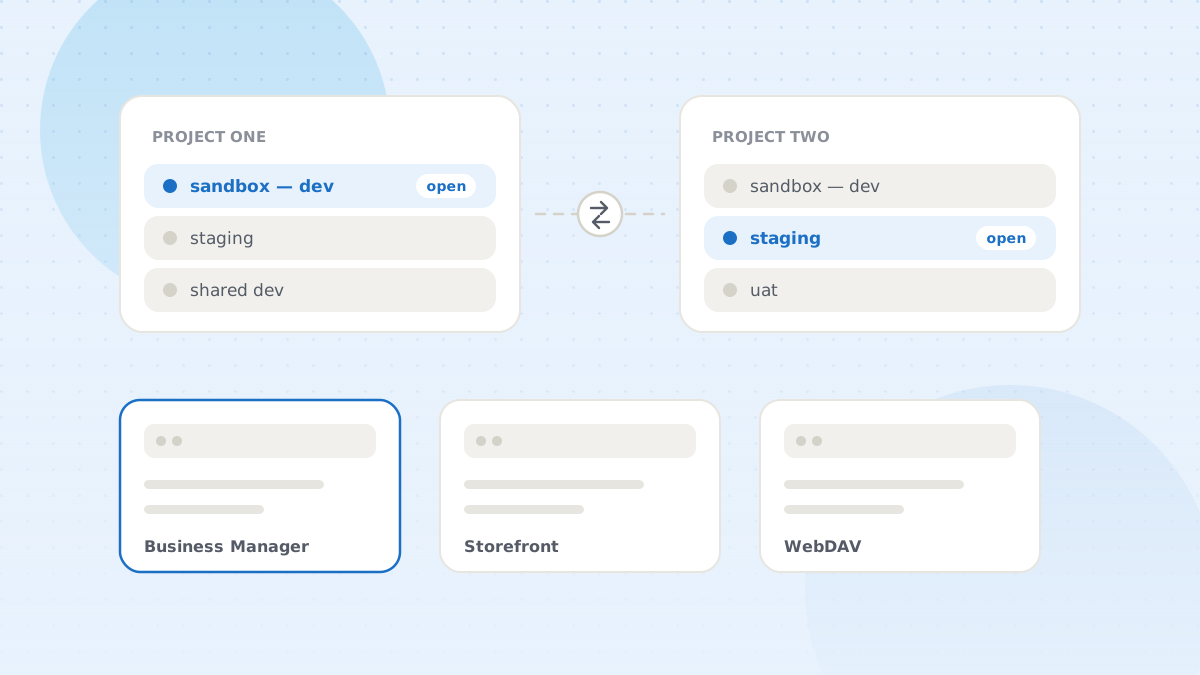
- URL Bookmarks with Site Context: Business Manager URLs contain unique site and object identifiers. You can bookmark the cache page for your primary sandbox. (Limitation: Fails to scale once you work across three or more sandboxes, because hostnames differ).
- Business Manager Quick Search: The search bar in the top navigation matches module names. Typing
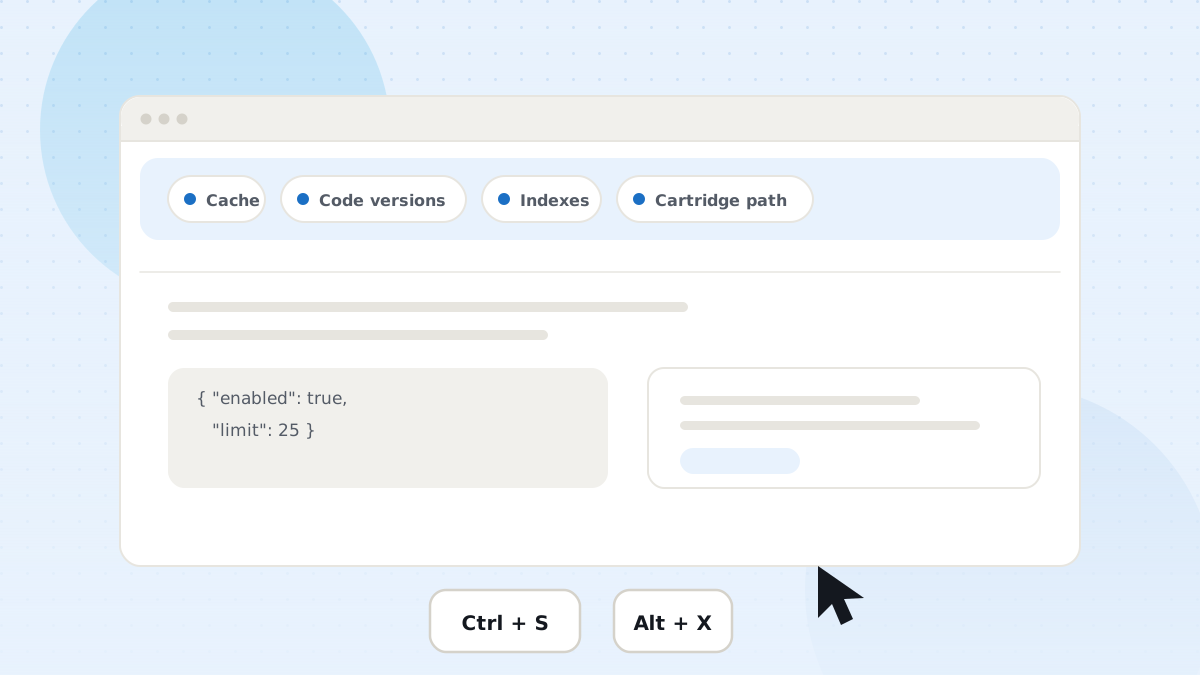
"cache"or"code dep"and pressing Enter is significantly faster than hovering four levels of dropdown menus. - Persistent In-Context Toolbar: The DWithEase Business Manager extension injects a lightweight toolbar directly into every BM screen. Cache invalidation, code version switching, and search index rebuilds remain one click away—without causing you to lose your place on the record you are currently editing.
2. Leverage Native & Injected Keyboard Shortcuts
Most users treat Business Manager as a purely mouse-driven interface. However, save-heavy workflows—such as editing content assets, adjusting sorting rules, or tweaking site preferences—benefit dramatically from keyboard navigation.
| Shortcut | Scope | Action Performed |
|---|---|---|
| Ctrl + S / Cmd + S | Form & Preference Pages | Triggers the Apply / Save button immediately without scrolling to the footer. |
| Alt + X | Form Pages | Cancels current edit and returns to previous module view. |
| Ctrl + L / Cmd + L | Content Asset Editor | Locks or unlocks the current content asset for exclusive editing. |
| Ctrl + D / Cmd + D | Content Asset Editor | Downloads the asset definition directly as clean XML. |
Pro Tip: In DWithEase, a small keyboard badge appears in the bottom corner of supported pages. Hovering over it displays all context-aware shortcuts available for that specific screen. See the full keyboard shortcut documentation.
3. Fix the Input Fields That Fight Back
Certain legacy Business Manager inputs introduce significant manual overhead. Resolving them at the browser level transforms frustrating multi-step tasks into instant operations:
Minified JSON in Custom Site Preferences
Modern SFCC cartridges store complex configuration objects as raw JSON inside standard text attributes. By default, Business Manager renders JSON as a single, unbroken string:
{"enabled":true,"apiKey":"pk_live_09481a8c","timeout":5000,"endpoints":{"auth":"https://auth.gateway.com/v1","checkout":"https://api.gateway.com/v2"},"retryPolicy":{"maxAttempts":3,"backoffMultiplier":1.5}}Hunting for an unescaped double quote or missing closing brace in a 1,000-character single-line input causes unnecessary delays. DWithEase automatically identifies JSON fields and embeds an in-place code editor with syntax highlighting, bracket matching, and real-time JSON validation.
Minified HTML in Content Assets
Third-party content migrations and rich-text imports frequently strip line breaks from content asset markup. Reformatting minified HTML with 1-click beautification lets you inspect DOM hierarchy and inline ISML markup instantly.
In-Place Content Asset XML Export
Normally, sharing a content asset across sandboxes requires setting up an export job in Administration > Operations > Site Import & Export, configuring an export data unit, downloading the archive from WebDAV, and unzipping it.
With the DWithEase asset download shortcut, clicking the Download Asset icon on the asset editor exports the raw XML snippet directly to your local machine in under two seconds.
4. Solve “Where Does This Come From?” on the Storefront
One of the largest time sinks in SFCC development is diagnosing unexpected content on the storefront. When a banner, disclaimer, or promotional element renders incorrectly, you are forced to ask:
- Is it an ISML template hard-coded into the cartridge?
- Is it a Content Slot assigned to a specific category or schedule?
- Is it an independent Content Asset embedded via an
<iscontentasset>tag?
┌─────────────────────────────────────────────────────────────┐
│                 STOREFRONT MARKUP DETECTIVE                 │
├─────────────────────────────────────────────────────────────┤
│  ISML Template   ──► Governed in cartridge repository code  │
│  Content Slot    ──► Configured in BM: Online Marketing     │
│  Content Asset   ──► Authored in BM: Content Management     │
└─────────────────────────────────────────────────────────────┘
Guessing requires searching cartridge code repositories, inspecting network requests, or hunting through Business Manager slot configurations.
Visual Content Inspection (Highlight Content)
Toggling Highlight Content in the DWithEase toolbar overlays clear visual borders over the live storefront:
- Blue outlines denote Content Slots.
- Green outlines denote Content Assets.
- Clicking any highlighted boundary opens the corresponding record directly inside Business Manager in a new tab.
This transforms a ten-minute code search into an instantaneous two-second jump.
5. Prevent Session Expiry from Derailing Flow
Business Manager sessions default to strict timeout windows (often 15 to 30 minutes). When you are testing templates in your IDE, inspecting logs, or reviewing pull requests, returning to Business Manager often presents an expired session screen.
Re-authenticating requires:
- Entering your two-factor credentials or SSO.
- Selecting your site context again.
- Navigating back to the exact record you were editing.
- Re-entering any unsaved changes lost during the timeout.
Enabling Session Keep-Alive and Automatic Login in the DWithEase Sandbox Options sends lightweight background heartbeat pings while your browser tab remains open. Your session stays active for up to 24 hours, ensuring that when you return to Business Manager, your form inputs, filters, and editing state remain intact.
The 5-Habit Summary
Adopting these five habits eliminates dozens of unnecessary interruptions every working day:
- Stop drilling menus: Use the DWithEase persistent toolbar or top search bar for Cache, Code Versions, and Search Indexes.
- Keep hands on the keyboard: Use Ctrl + S to save changes instantly across preference and content screens.
- Format before editing: Utilize in-browser JSON/HTML beautification to avoid syntax syntax errors in custom preferences.
- Inspect storefronts visually: Use Highlight Content to jump from storefront elements directly to their Business Manager records.
- Protect your focus: Enable session keep-alive to eliminate mid-day authentication loops.